See where your disk space went. Get it back safely.

Legroom explains every item on your Mac and moves only what rebuilds itself to the Trash, with a receipt you can restore from for seven days.

Coming soon to the Mac App Store

Free · macOS 15 or later · No data collected

Story: Your whole disk, explainedStory: Your whole disk, explained
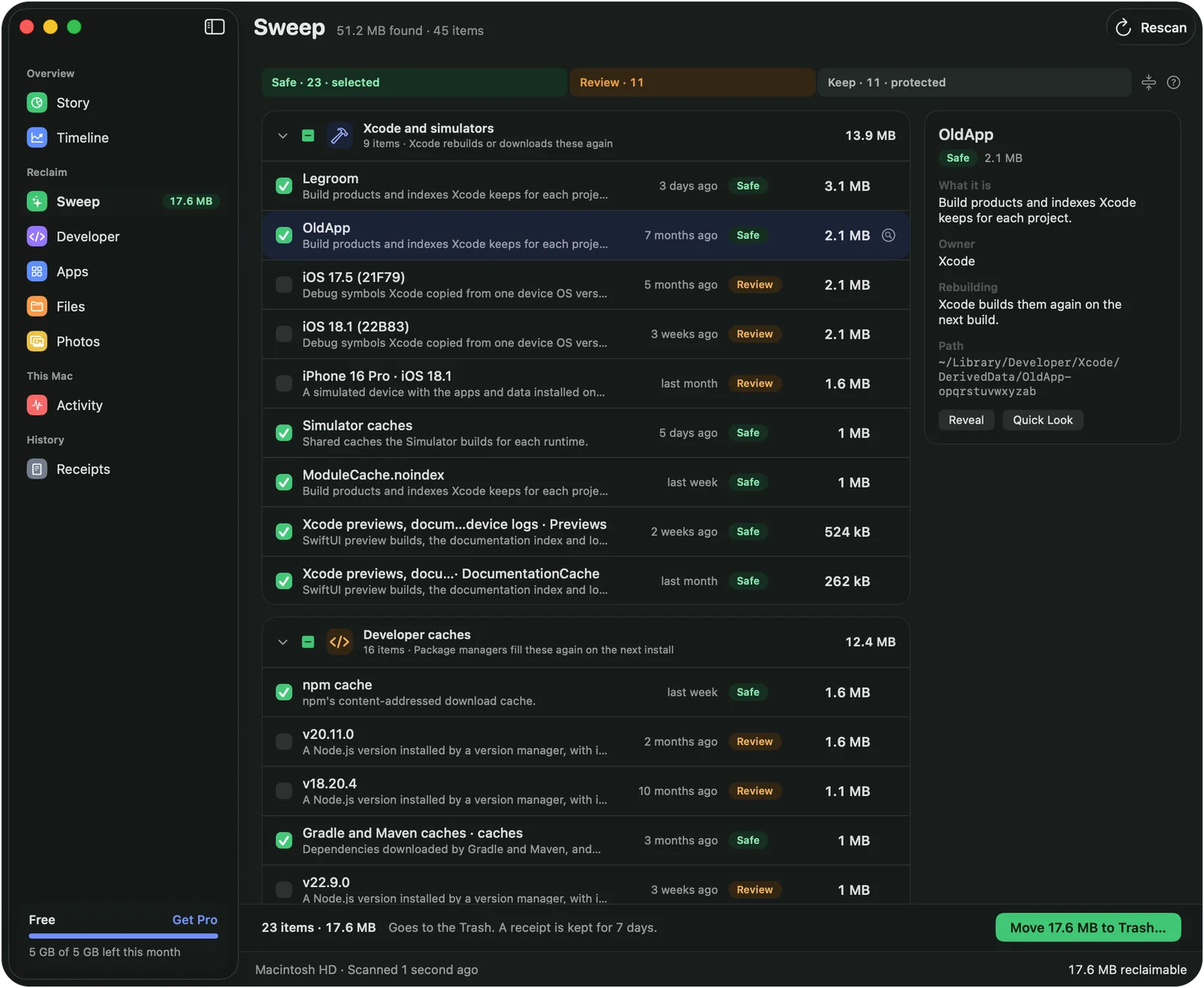
Sweep: Every item says how it is rebuiltSweep: Every item says how it is rebuilt
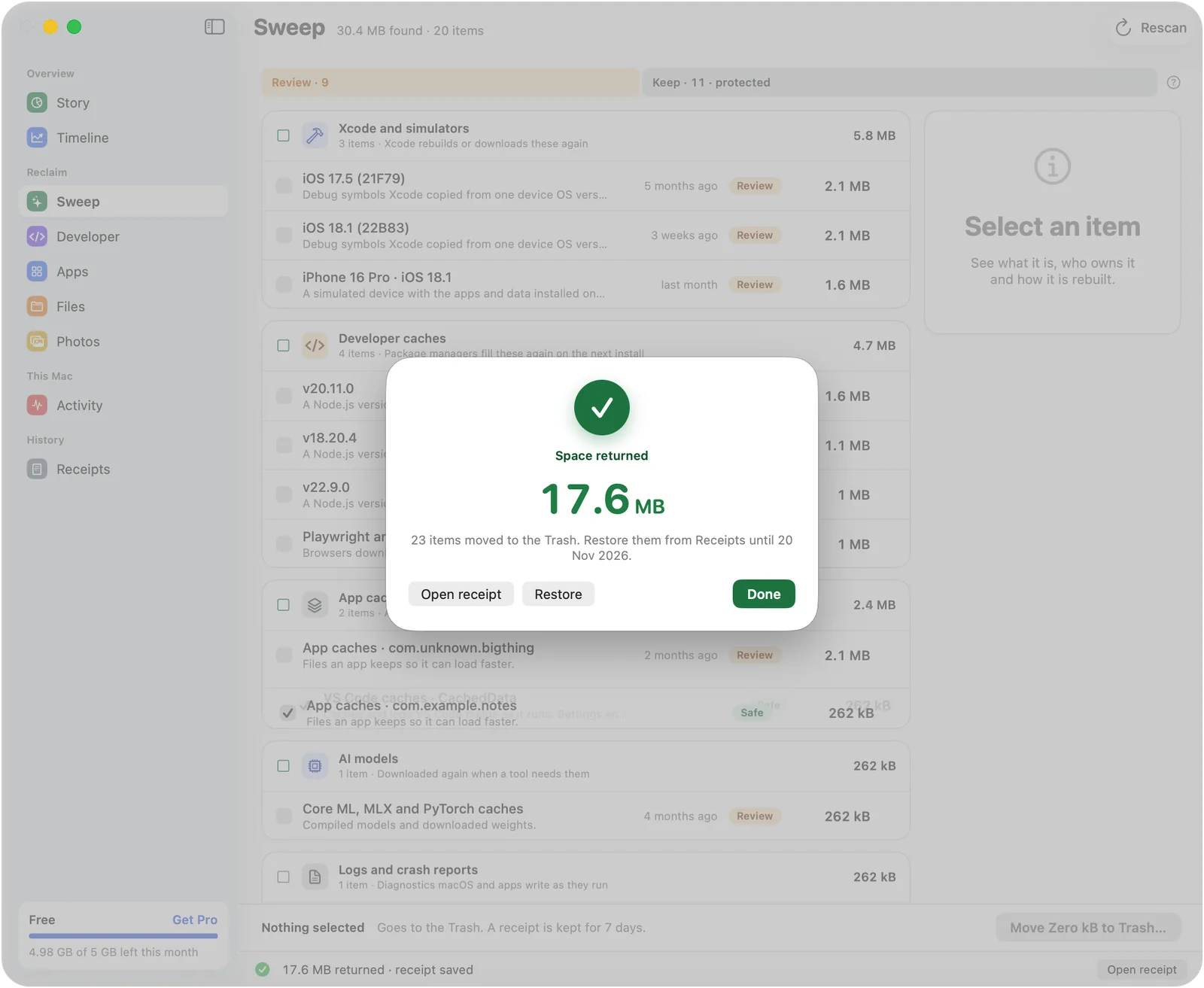
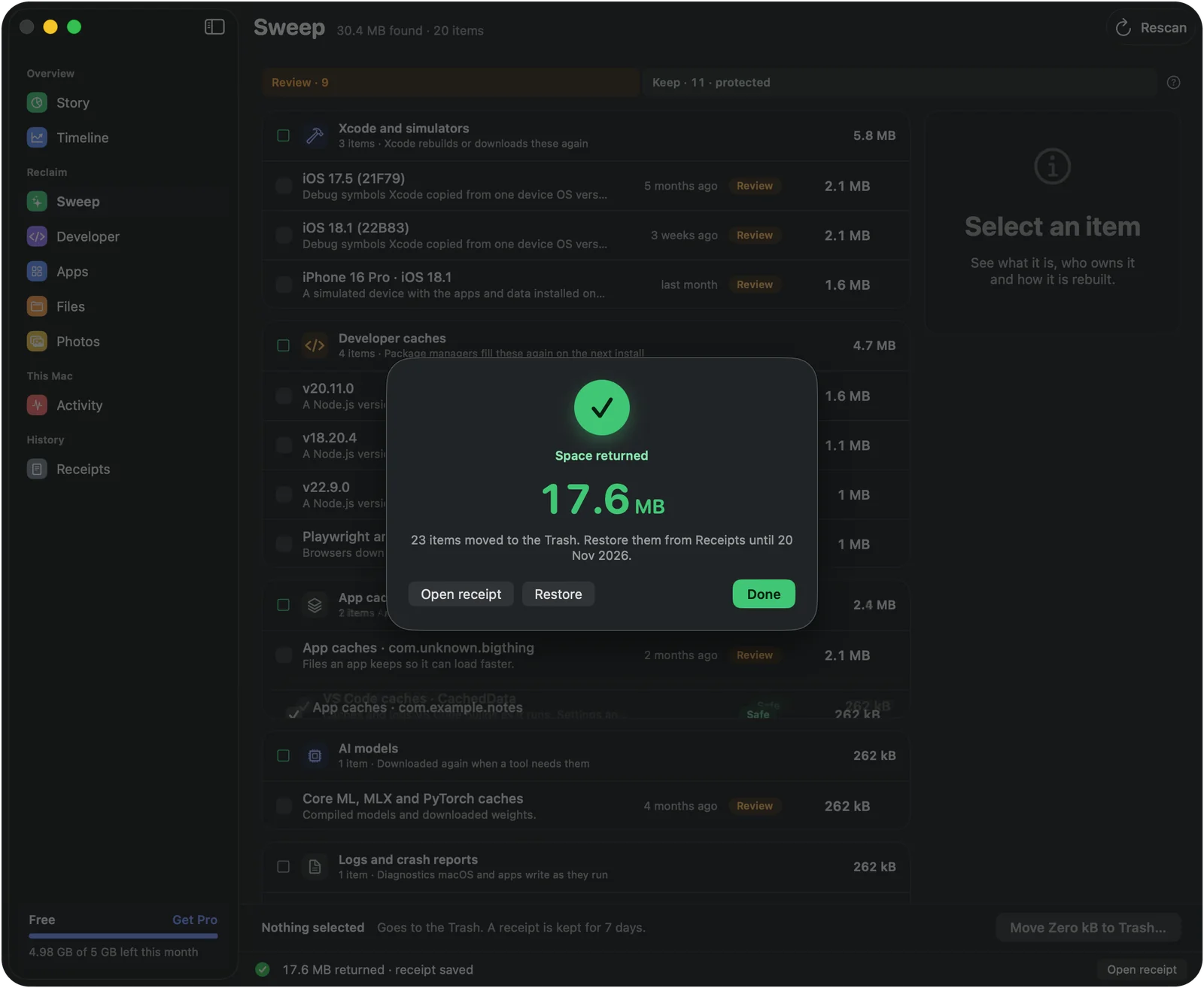
Receipts: Everything goes to the Trash, with a receiptReceipts: Everything goes to the Trash, with a receipt
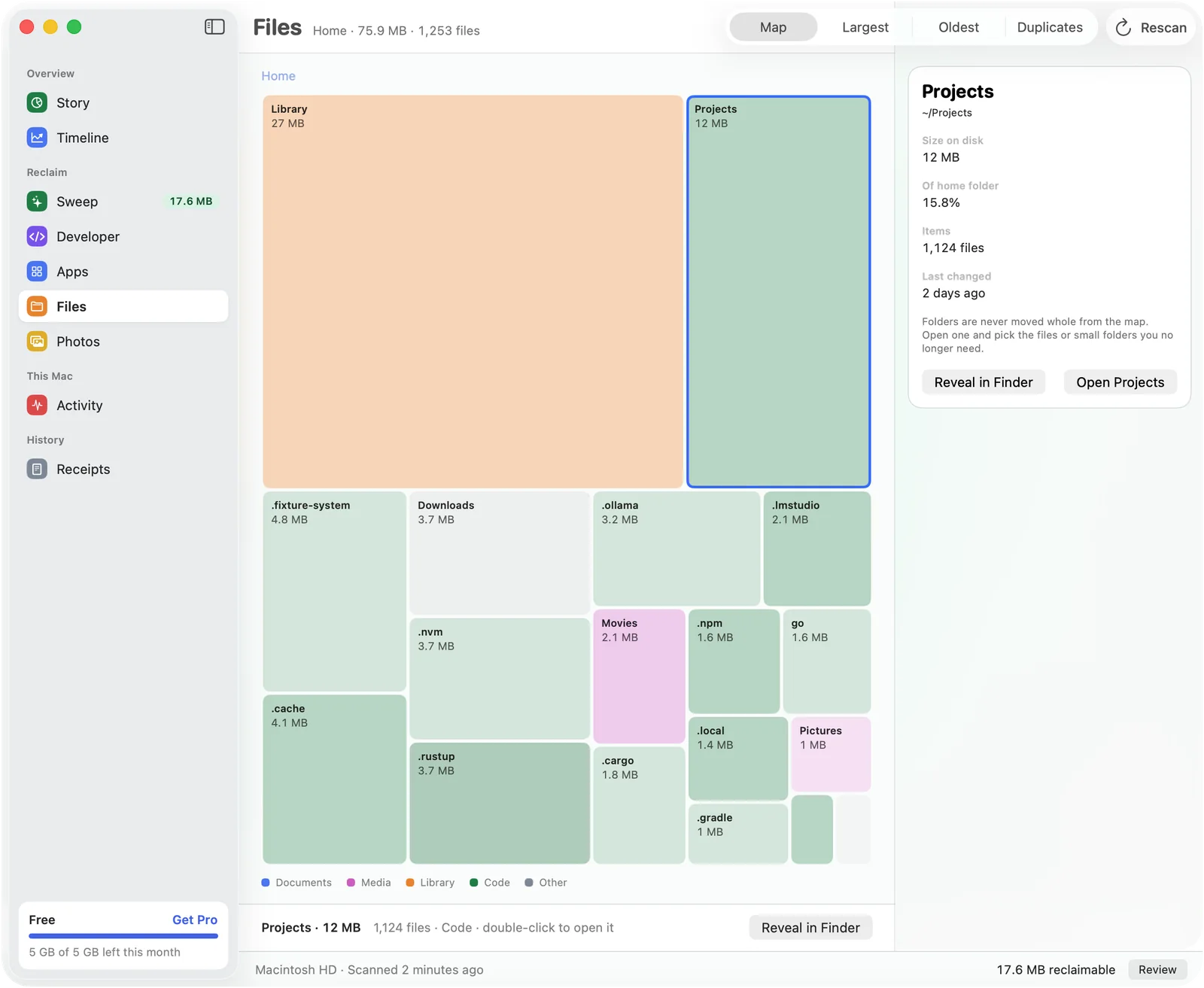
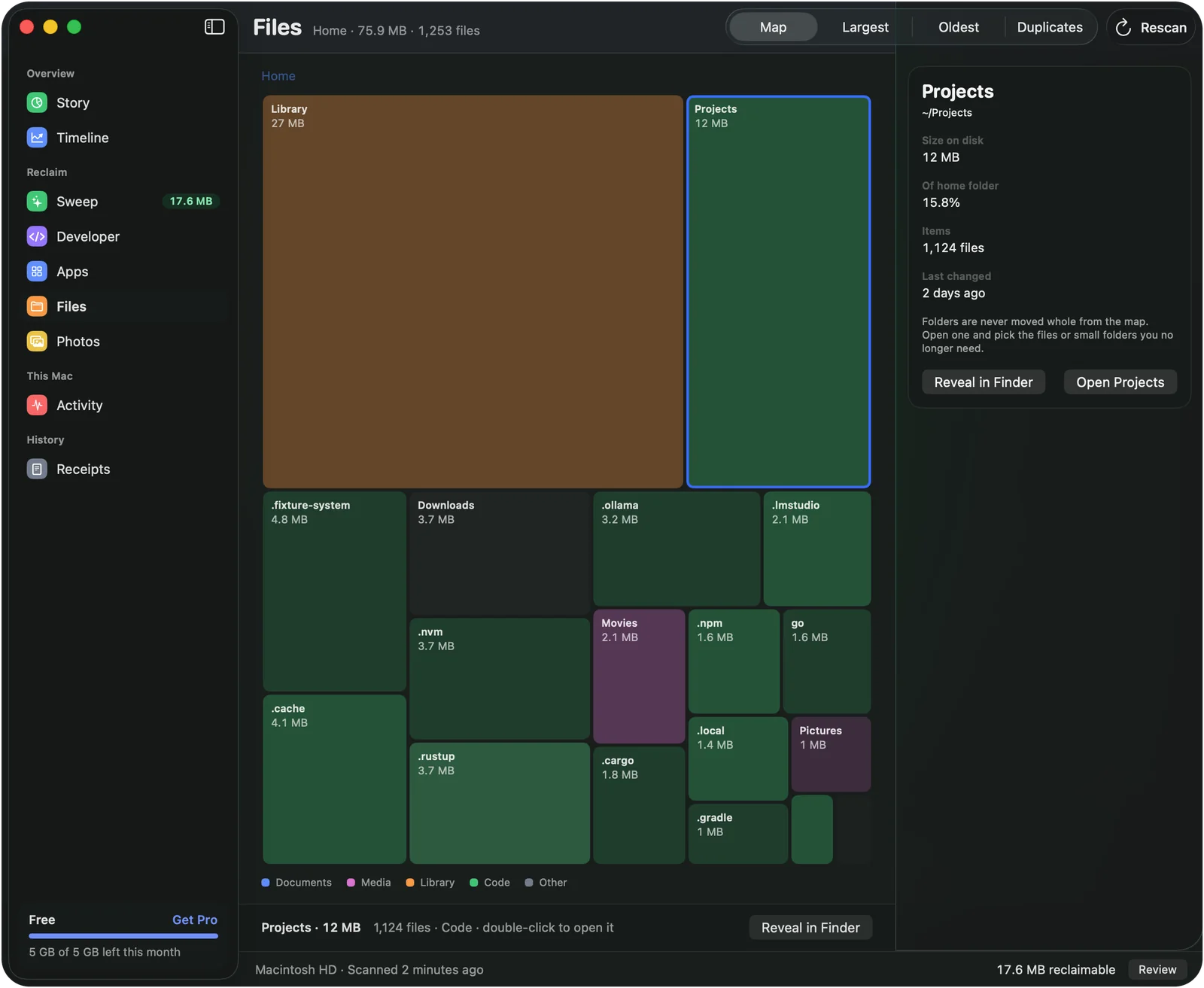
Files: See the biggest folders at a glanceFiles: See the biggest folders at a glance
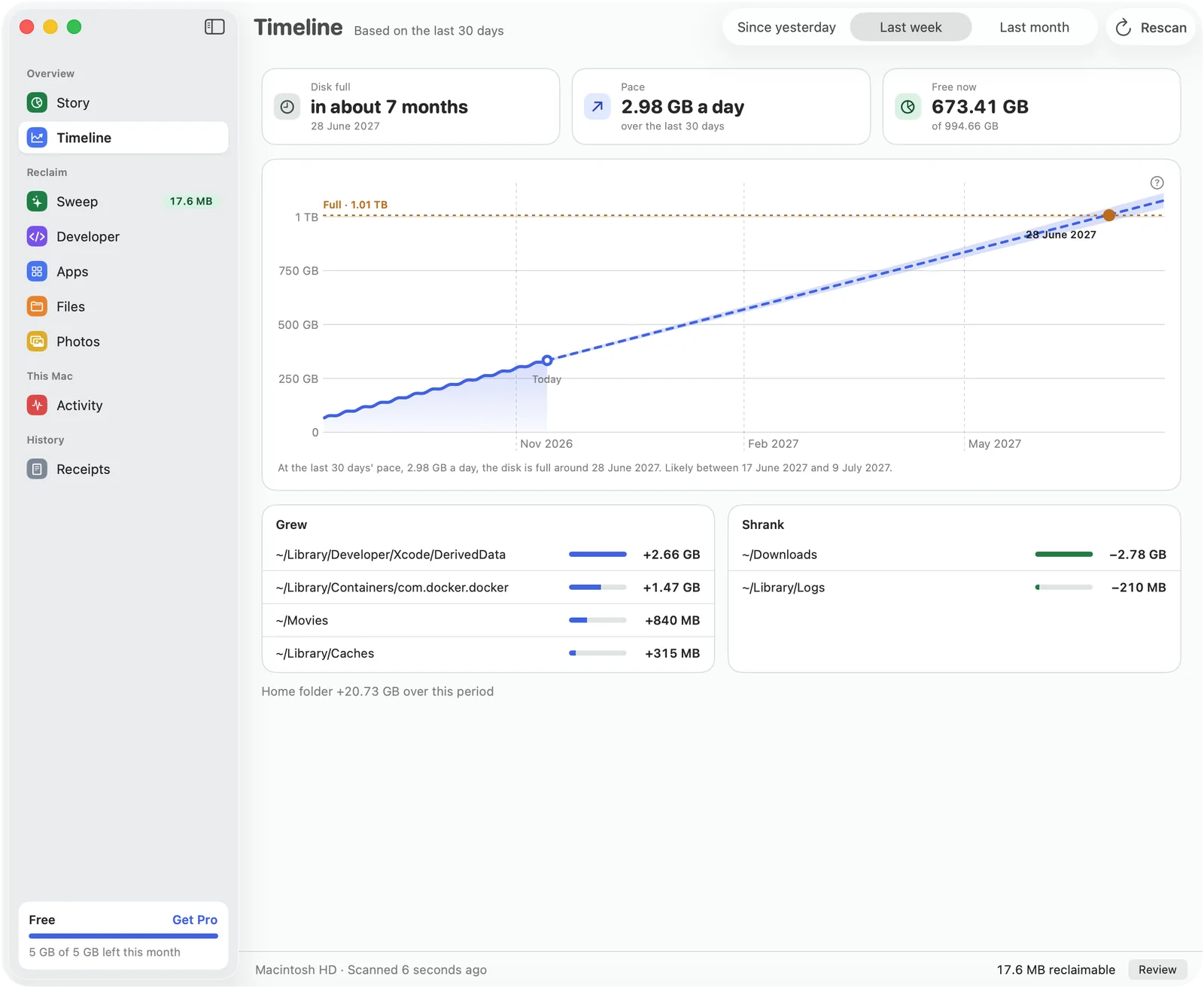
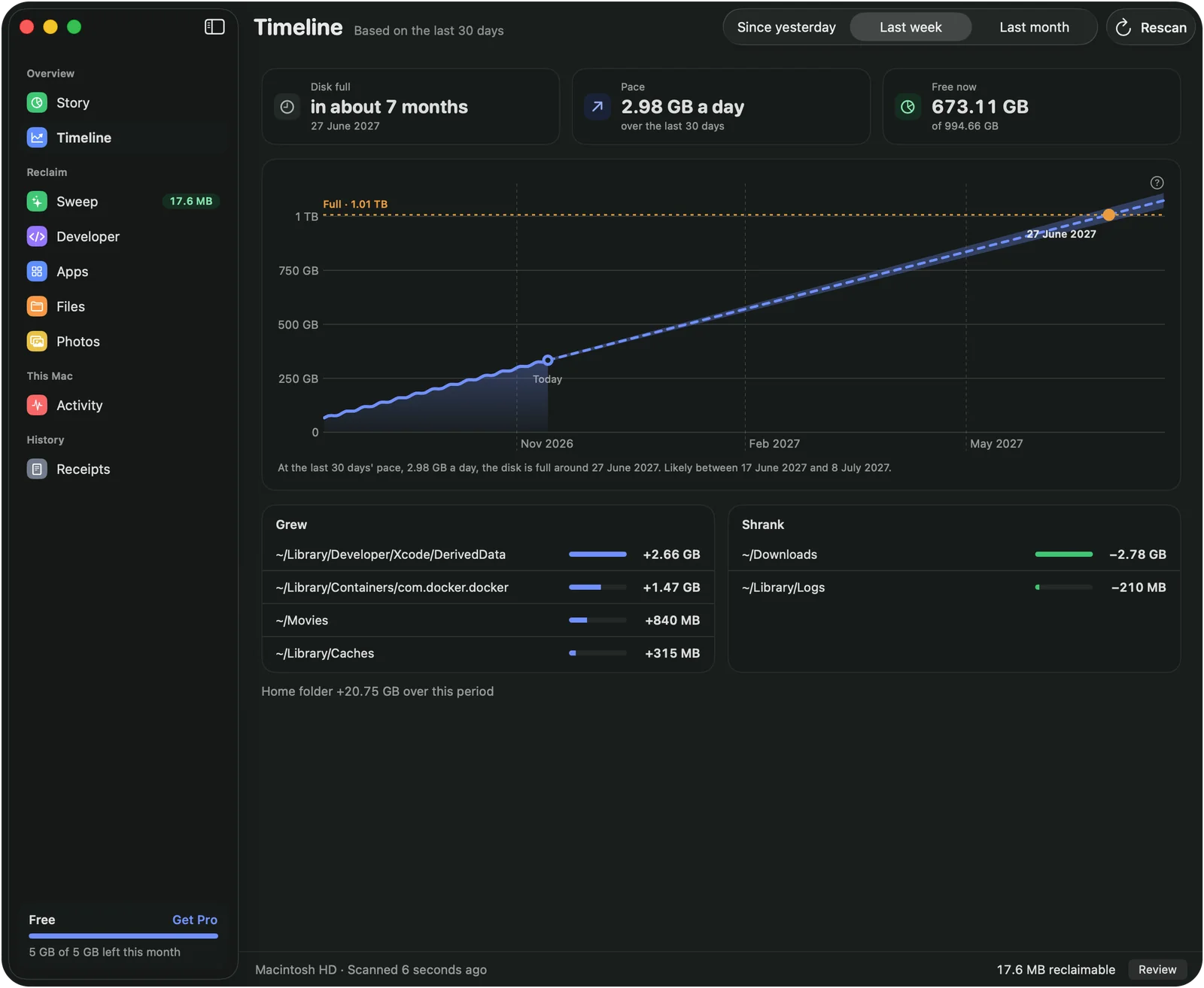
Timeline: Know when your disk will be fullTimeline: Know when your disk will be full

Every item has a reason

What it is, which app made it, when it was last used and how it is rebuilt.

Nothing is destroyed

Everything goes to the Trash first. Restore from the receipt for seven days.

Nothing leaves your Mac

No account, no analytics, no network connections.

What Legroom shows you

Eight screens, one idea: you see what an item is before anything happens to it.

Story

Your whole disk, explained

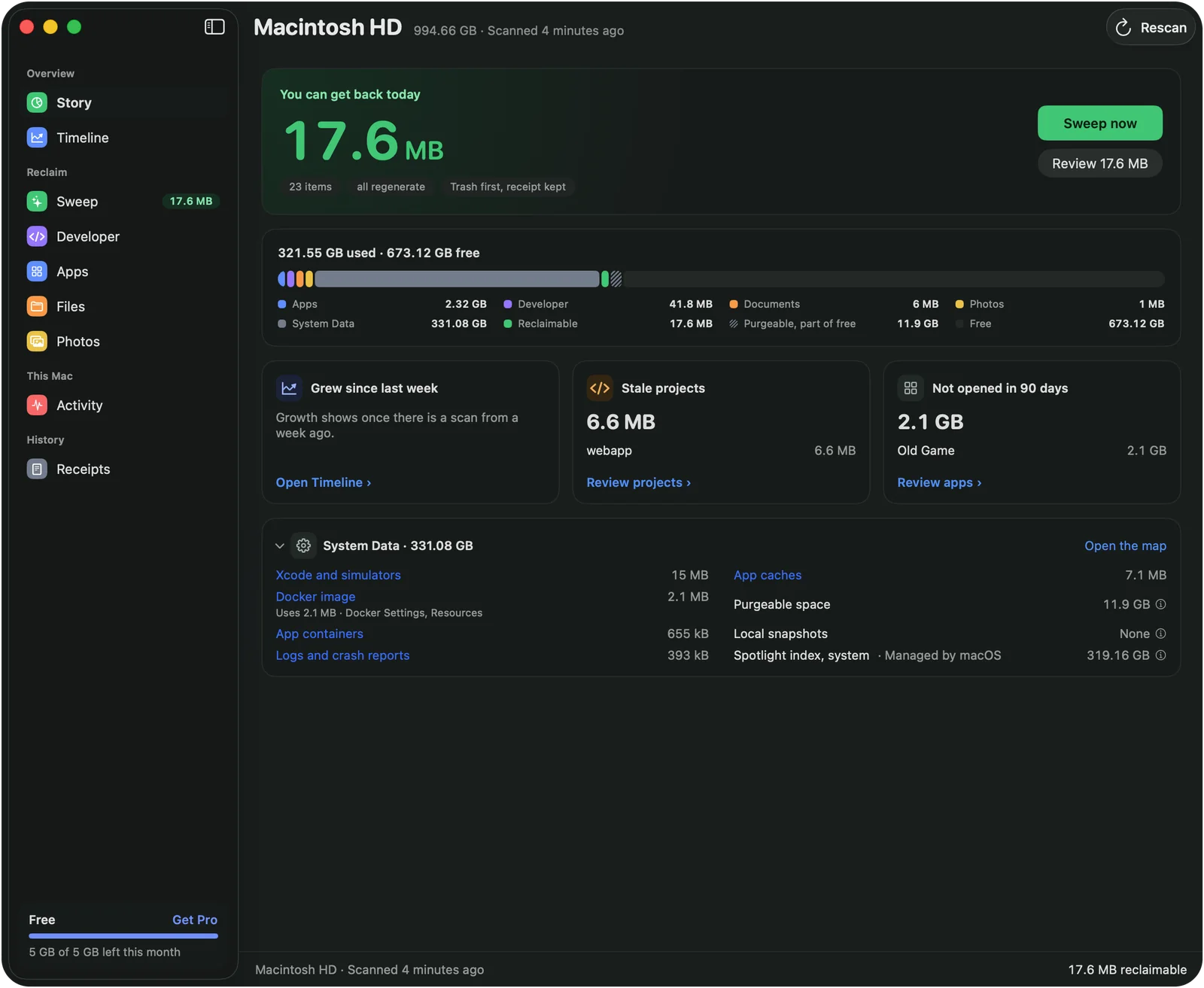
One bar shows your whole disk: apps, documents, developer files, System Data, purgeable space and what is free. Below it, Legroom names what grew this week and how much you can get back today.

  • System Data broken down into Xcode files, Docker images, app containers, logs and caches
  • Stale projects and apps you haven't opened in 90 days
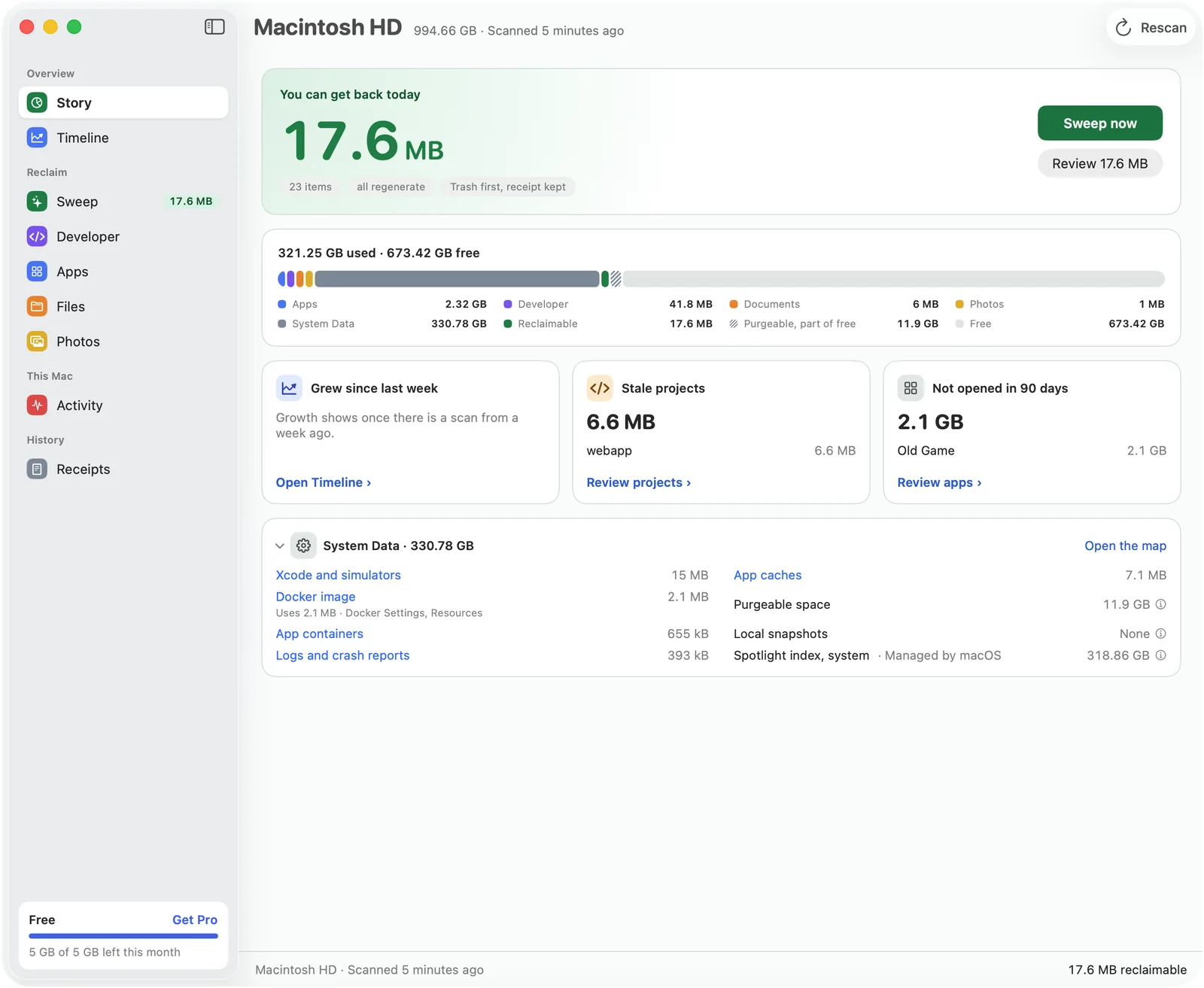
Story: Your whole disk, explainedStory: Your whole disk, explained
Sweep

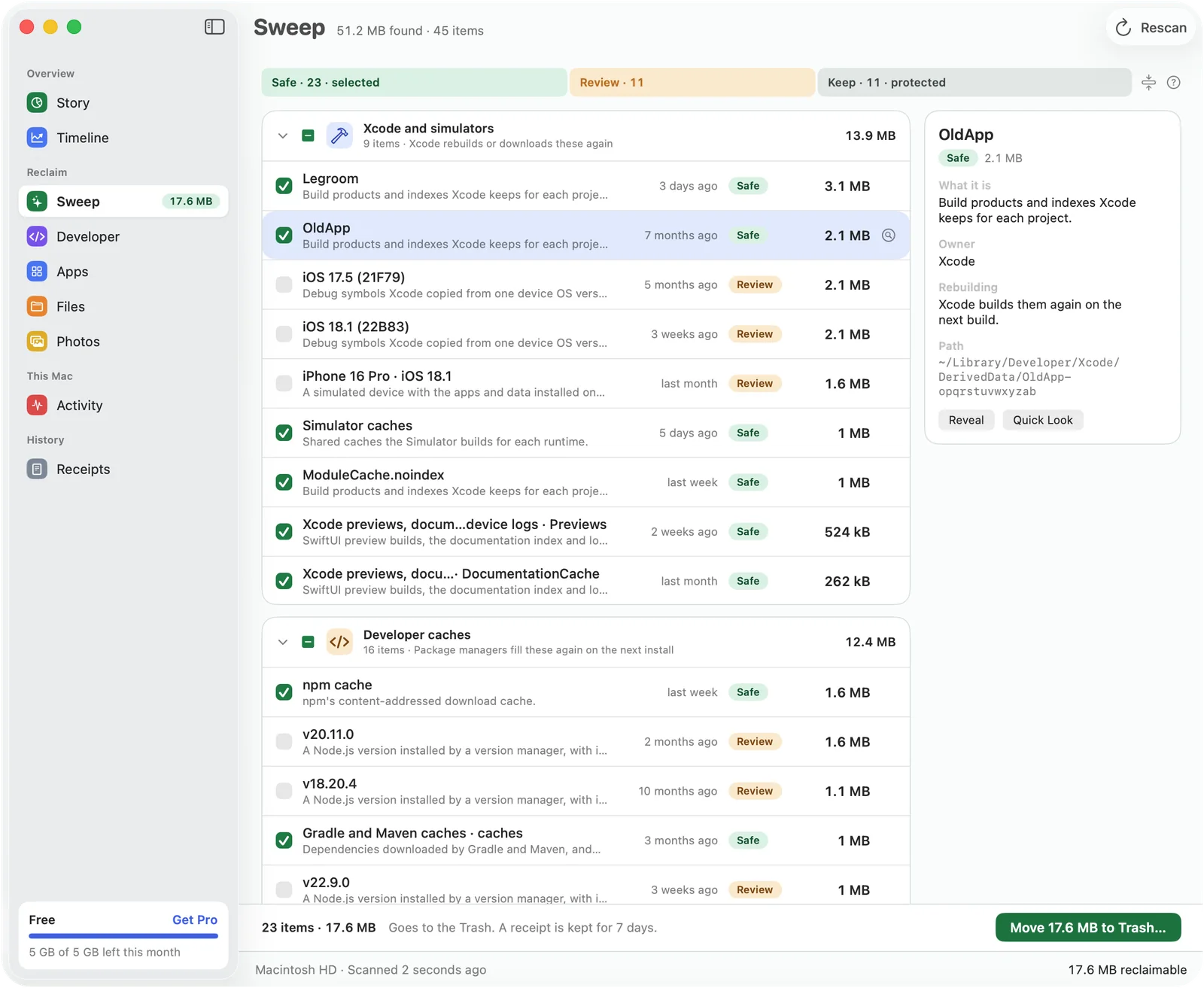
Every item says how it is rebuilt

Each item shows what it is, which app or tool made it, when it was last used and how it comes back. Items are sorted into tiers, and only Safe items are selected for you.

  • Safe: the owning tool rebuilds it by itself
  • Review: safe to remove, but it costs a re-download
  • Keep: your data or a tool's state. Never swept
  • In use: the app that owns it is running
Sweep: Every item says how it is rebuiltSweep: Every item says how it is rebuilt
Receipts

Everything goes to the Trash, with a receipt

Legroom never deletes a file directly. Every sweep writes a receipt you can open, and Restore puts items back from the Trash for seven days.

  • Photos libraries, Mail, Messages, iCloud Drive, Documents, Desktop, keychains and Time Machine are on a protected list no rule can override
Receipts: Everything goes to the Trash, with a receiptReceipts: Everything goes to the Trash, with a receipt
Developer

Hibernate projects you're not working on

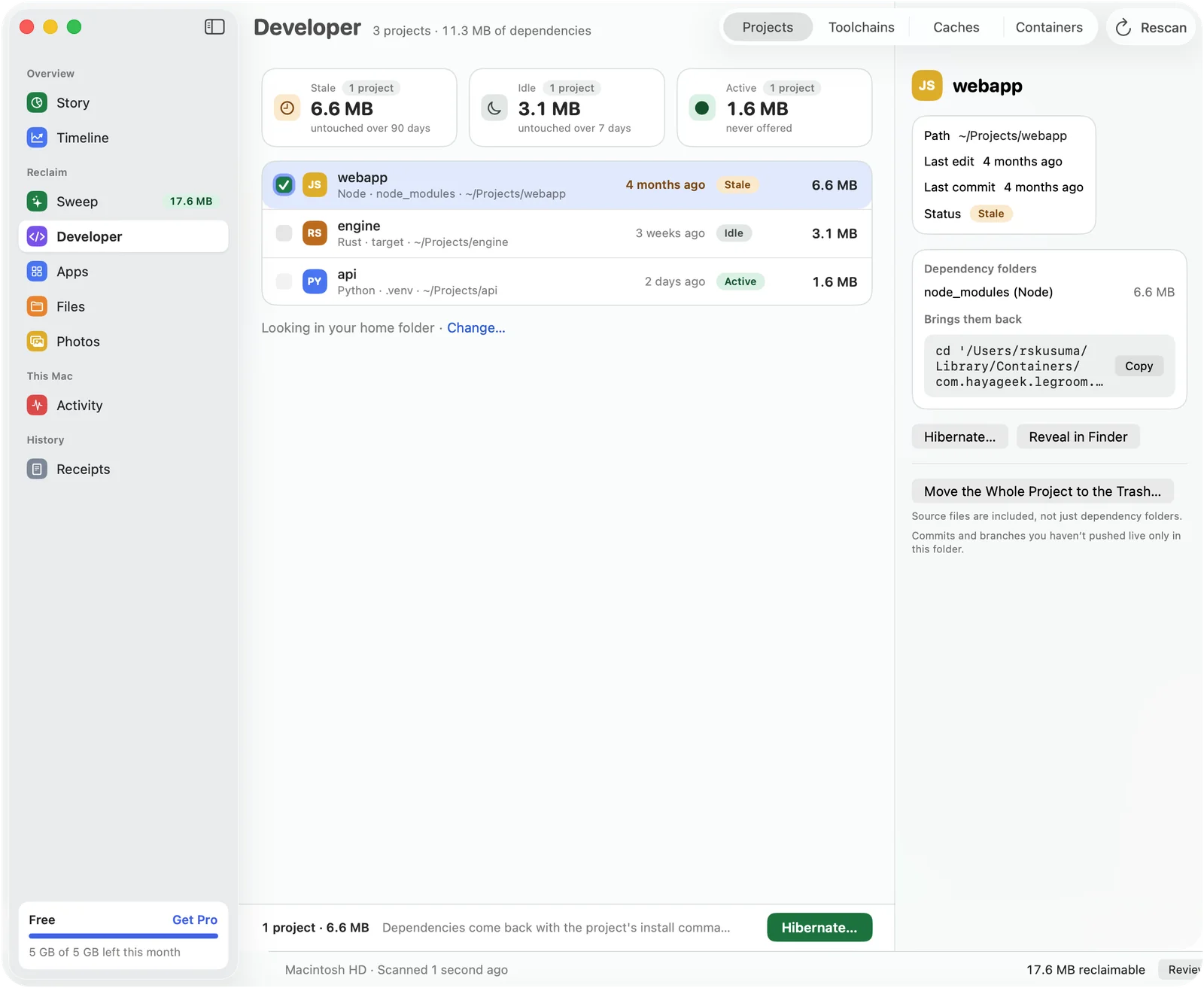
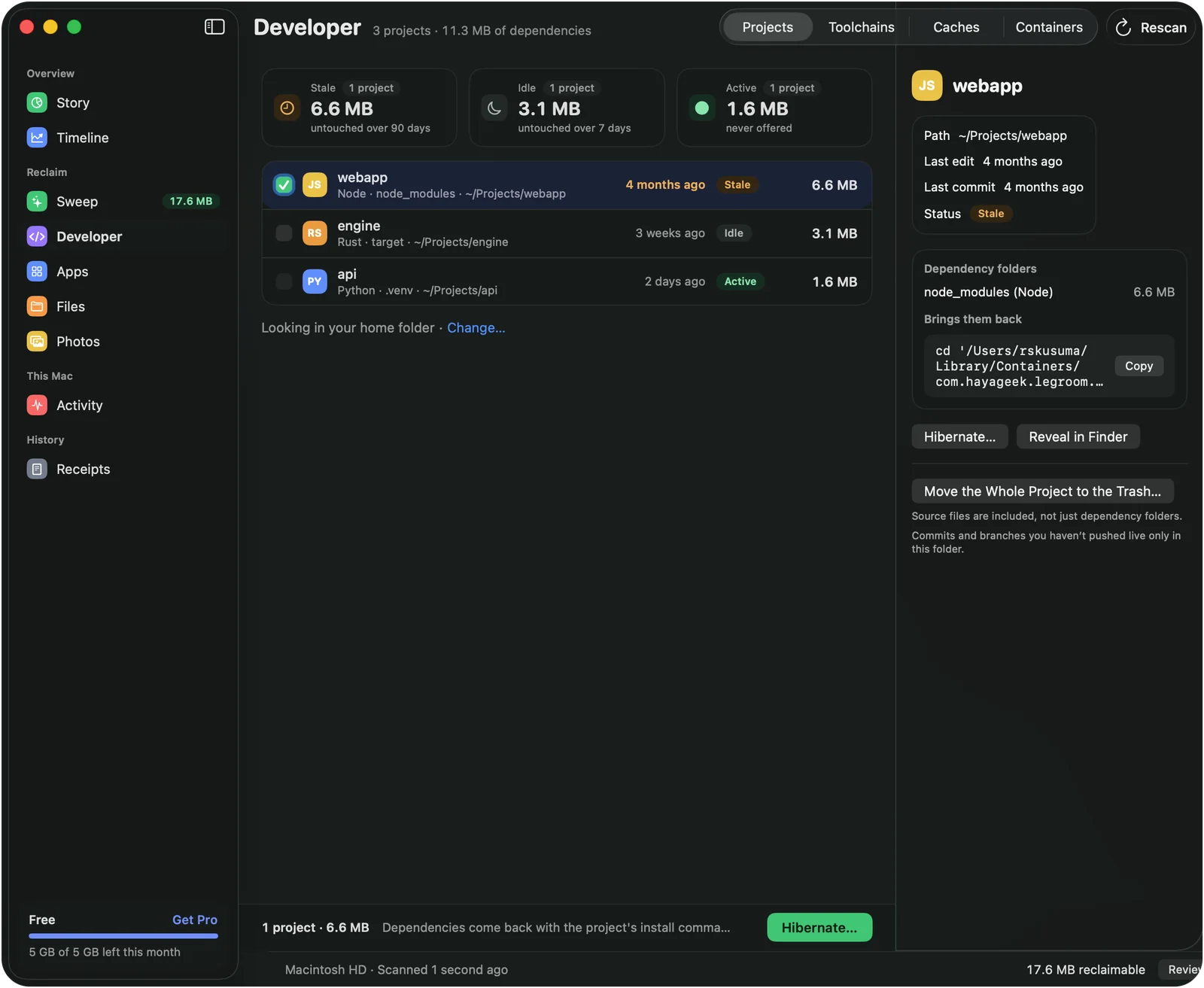
Xcode DerivedData, device support, simulators, archives, node_modules, package manager caches and toolchains, each with its rule. Hibernating a project moves its dependency folders to the Trash and keeps the command that rebuilds them.

  • Docker Desktop, OrbStack, Colima and Podman: whether each is running and how much its disk image takes
  • Legroom shows each engine's own commands to reclaim space and runs none of them
Developer: Hibernate projects you're not working onDeveloper: Hibernate projects you're not working on
Files

See the biggest folders at a glance

A map of your home folder where the largest folders take the most room. Switch to lists of the largest and oldest files, or find duplicate files.

  • Click to select, double-click to open, Space for Quick Look
Files: See the biggest folders at a glanceFiles: See the biggest folders at a glance
Apps

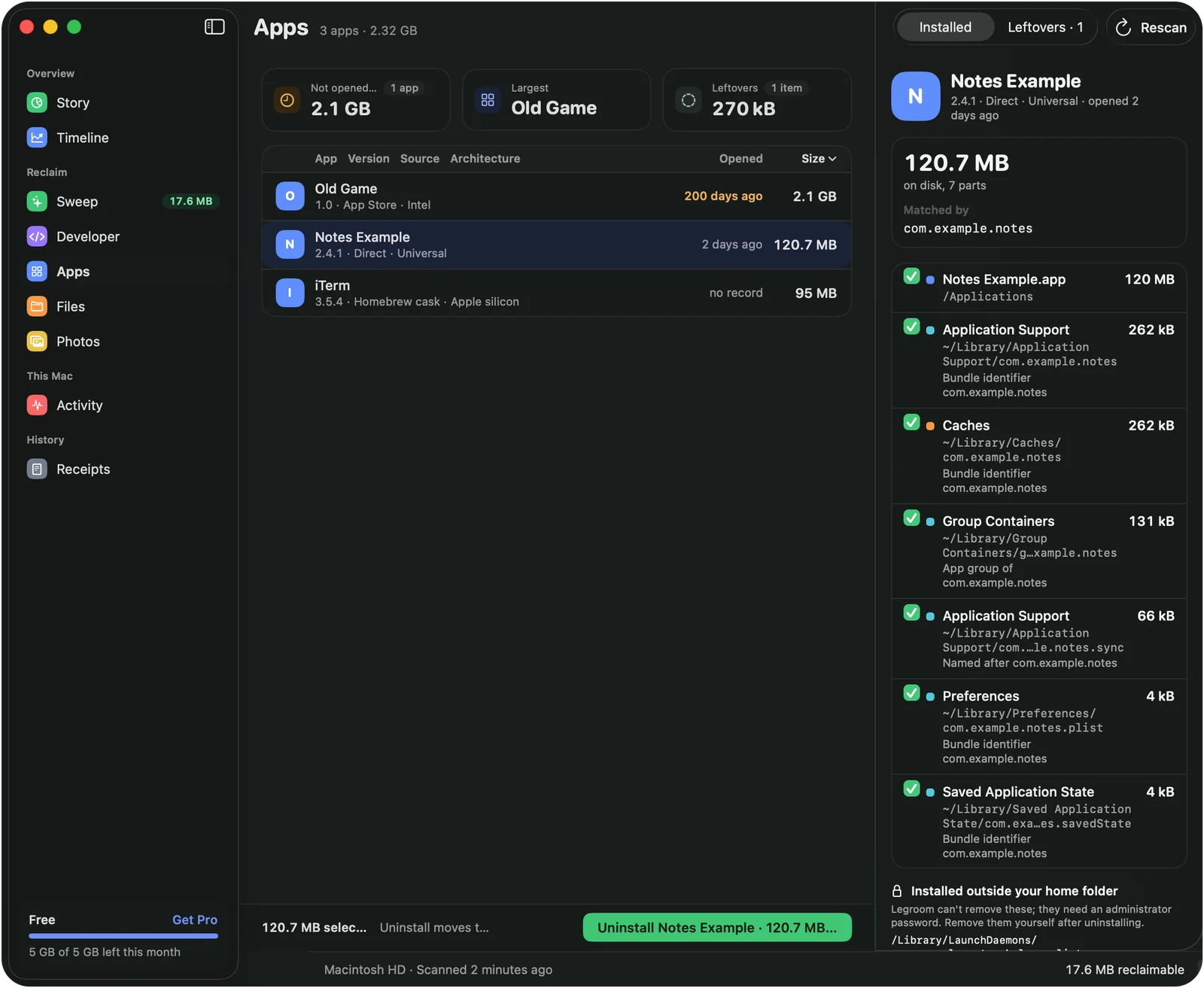
Uninstall an app and what it left behind

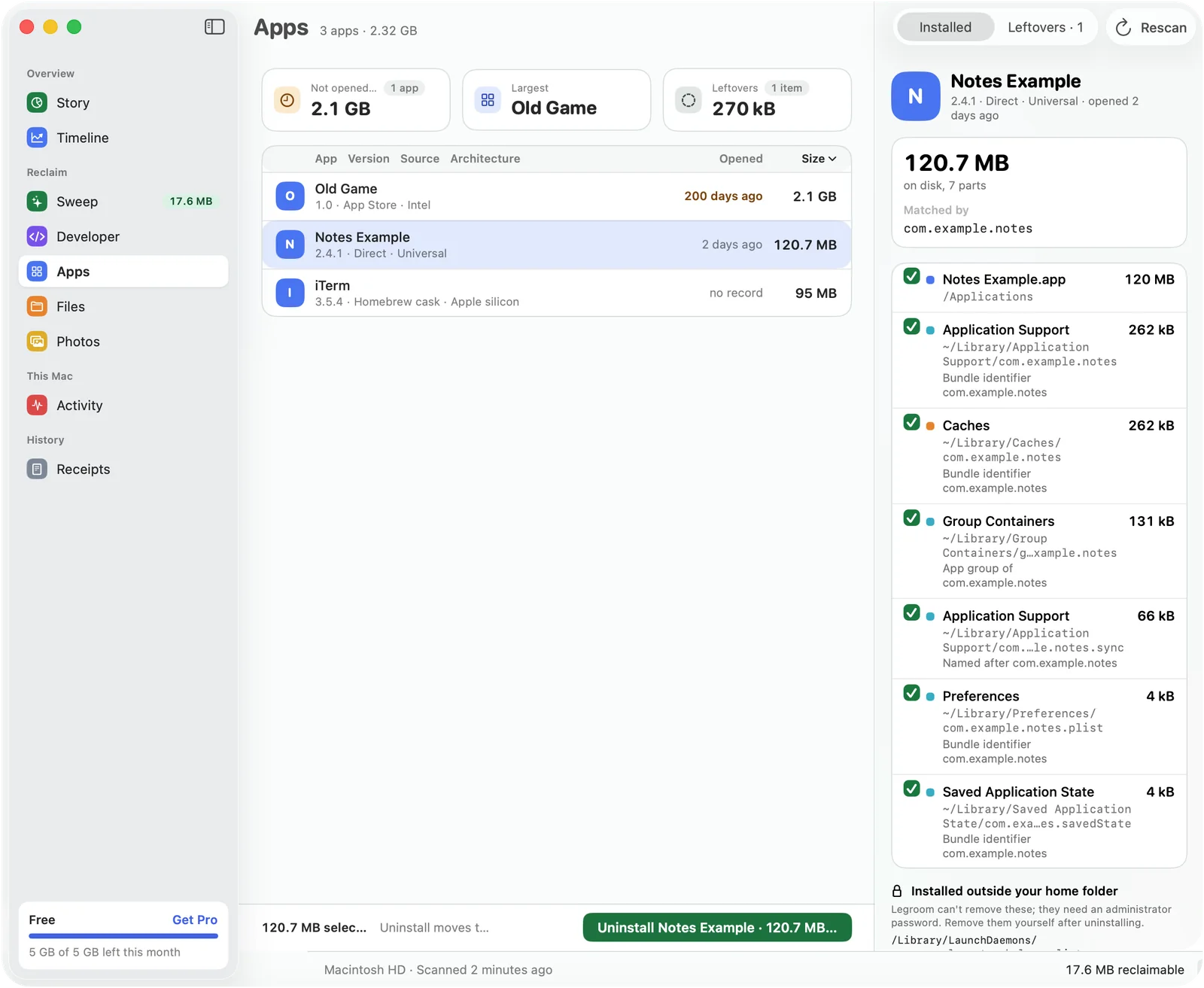
Each app is listed with its size, where it came from and when you last opened it. Uninstalling shows every part first: the app, its support files, caches, containers and preferences.

  • Leftovers from apps that are already gone
  • Parts outside your home folder are listed, so you can remove them yourself
Apps: Uninstall an app and what it left behindApps: Uninstall an app and what it left behind
Photos

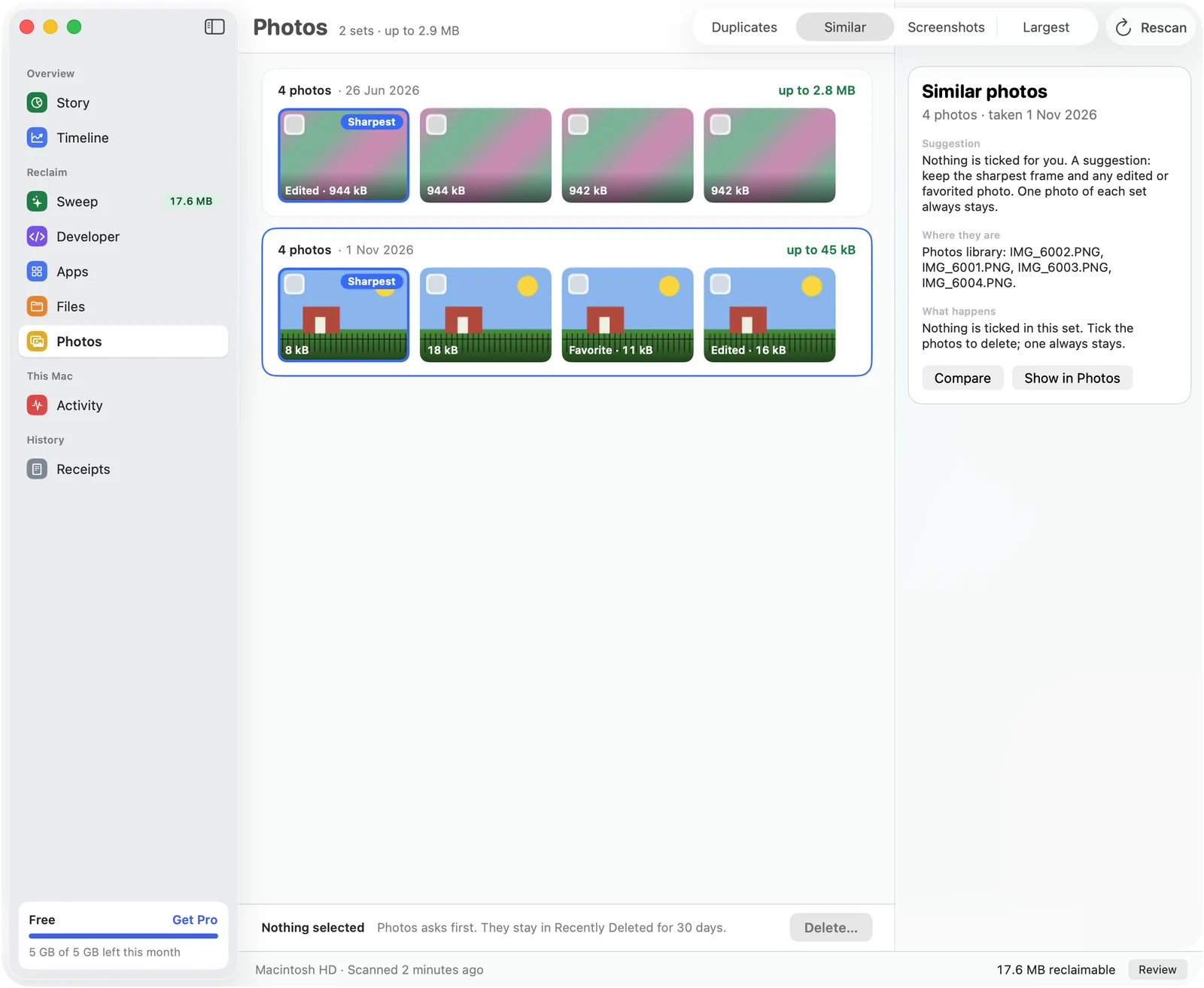
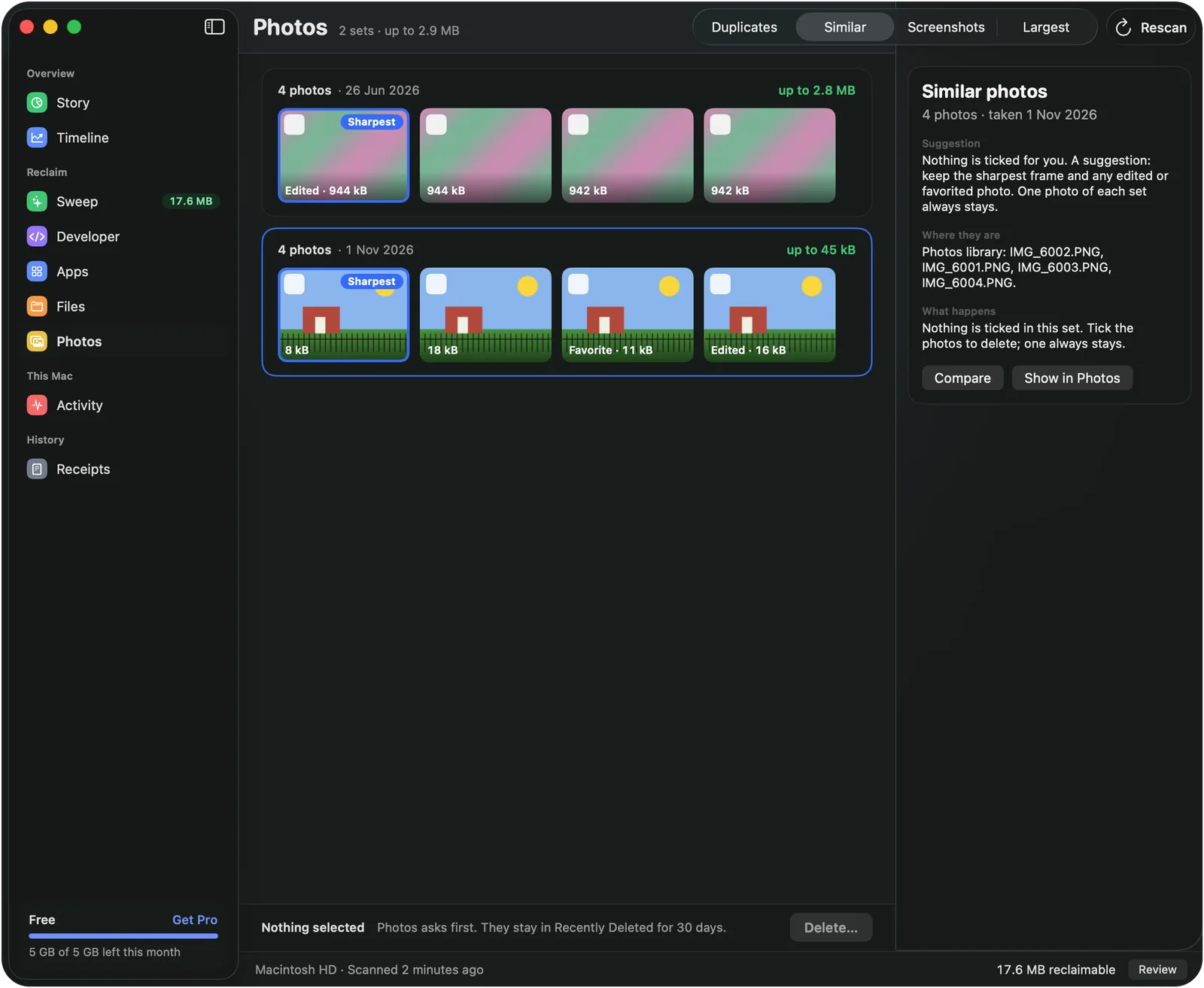
Duplicate and similar photos, side by side

Legroom finds duplicates, similar shots, screenshots and the largest items in your Photos library. Nothing is ticked for you, and one photo of each set always stays.

  • Photos asks before anything is deleted
  • Deleted photos stay in Recently Deleted for 30 days
Photos: Duplicate and similar photos, side by sidePhotos: Duplicate and similar photos, side by side
Timeline

Know when your disk will be full

A chart of your disk over time, the pace it is filling at and the date it would be full. Below it, the folders that grew and shrank since yesterday, last week or last month.

Timeline: Know when your disk will be fullTimeline: Know when your disk will be full

How it works

  1. 1

    Choose your home folder

    Once, in the standard macOS Open panel. Legroom reads names, sizes and dates. You can revoke access in Settings.

  2. 2

    Read the Story

    Legroom scans it and draws your disk as one bar, with the reclaimable part marked in green.

  3. 3

    Sweep, and keep the receipt

    Sweep now moves the Safe items to the Trash. Review lets you choose first. Either way you get a receipt.

See it work

From the first scan to a receipt, in half a minute.

Private by design

  • Data Not Collected. No account, no analytics, no network connections.
  • Access through the standard Open panel: your home folder once, plus any folders you add.
  • No administrator password and no privileged helper.
  • The rules ship inside the app and change only with App Store updates.
Read the privacy policy →

Free, and Pro when you need it

Free
Everything in Legroom, including sweeps of up to 5 GB a month.
Pro
No monthly limit. One purchase, no subscription, shared with your family.

A 14-day trial of Pro is free and charges nothing.

Questions

Is Legroom safe to use?

Yes. A sweep selects only items the owning app or tool rebuilds by itself. Everything goes to the Trash, never straight off the disk, and each sweep writes a receipt you can restore from for seven days.

What does Legroom remove?

Only what you choose. Safe items such as build caches and downloaded installers are selected for you; everything else waits for your decision. Photos libraries, Mail, Messages, iCloud Drive, Documents, Desktop, keychains and Time Machine backups are never removed.

How do I see what is in System Data on my Mac?

The Story screen breaks System Data into Xcode and simulator files, Docker images, app containers, logs, app caches, purgeable space, local snapshots and the part macOS manages itself, each with its size.

Can I get something back after a sweep?

Yes. Open Receipts, pick the sweep and choose Restore. Items go back to where they were, as long as they are still in the Trash, for seven days.

Does Legroom send my data anywhere?

No. Legroom makes no network connections and doesn't have the macOS permission to make them. There is no account and no analytics.

Does it need an administrator password?

No. Legroom is a sandboxed App Store app. It reads only the folders you grant in the Open panel and never asks for a password.

What does it cost?

Legroom is free, including sweeps of up to 5 GB a month. Pro removes the monthly limit with one purchase, no subscription, shared with your family. A 14-day trial is free.

Which Macs does it run on?

Any Mac with macOS 15 or later.

See where your disk space went.

Coming soon to the Mac App Store

Free · macOS 15 or later · No data collected